
Find hours in Steam
Select a game in the Steam desktop Library and look for its playtime near the play controls. Your Steam profile also has a games list with playtime information; visibility to other people depends on your privacy settings.
A private profile does not need to be made public for PlayCounter’s local Steam importer. It reads Steam data already available on your PC.
Import into PlayCounter
Worth doing once: the import brings in the playtime Steam recorded, so your totals start with your real hours instead of zero. New Steam sessions are tracked either way, with or without an import.
Open Steam in My Games
In the sidebar under My Games, select Steam, then Import from Steam. After your first import, the button says Import more from Steam.
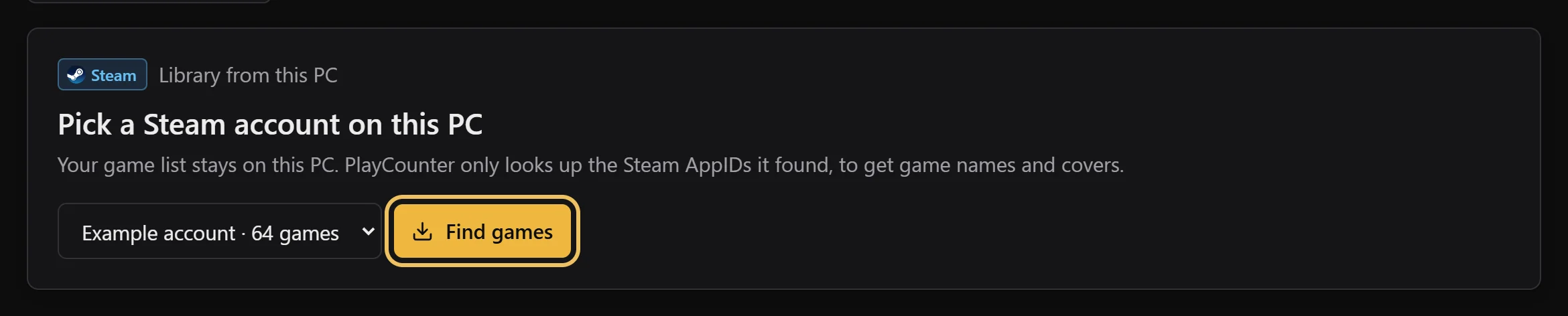
Pick your Steam account, then Find games
PlayCounter lists the Steam accounts that signed in on this PC. It reads Steam data already on your PC, so there is no password and no extra sign-in.
Review and import
Confirm any uncertain matches, keep the games you want and import them. They arrive with the playtime Steam reports.
If a game or its hours are missing
Check that you selected the right local Steam account. Open Steam online and let it refresh, then run the import again. The importer can only use data Steam has made available locally; an absent value is not proof that you never played the game.
Imported hours do not create old sessions in My History. For a matched game, PlayCounter compares the imported launcher hours with the time it tracked itself and shows the higher number, so overlapping hours are not counted twice. See an example.
Record new Steam sessions automatically
Keep PlayCounter running and launch games through Steam normally. Recognized game processes get a local session timer and history. Import is optional for this tracking; repeat an import when you want to refresh the available Steam totals.