
Now Playing
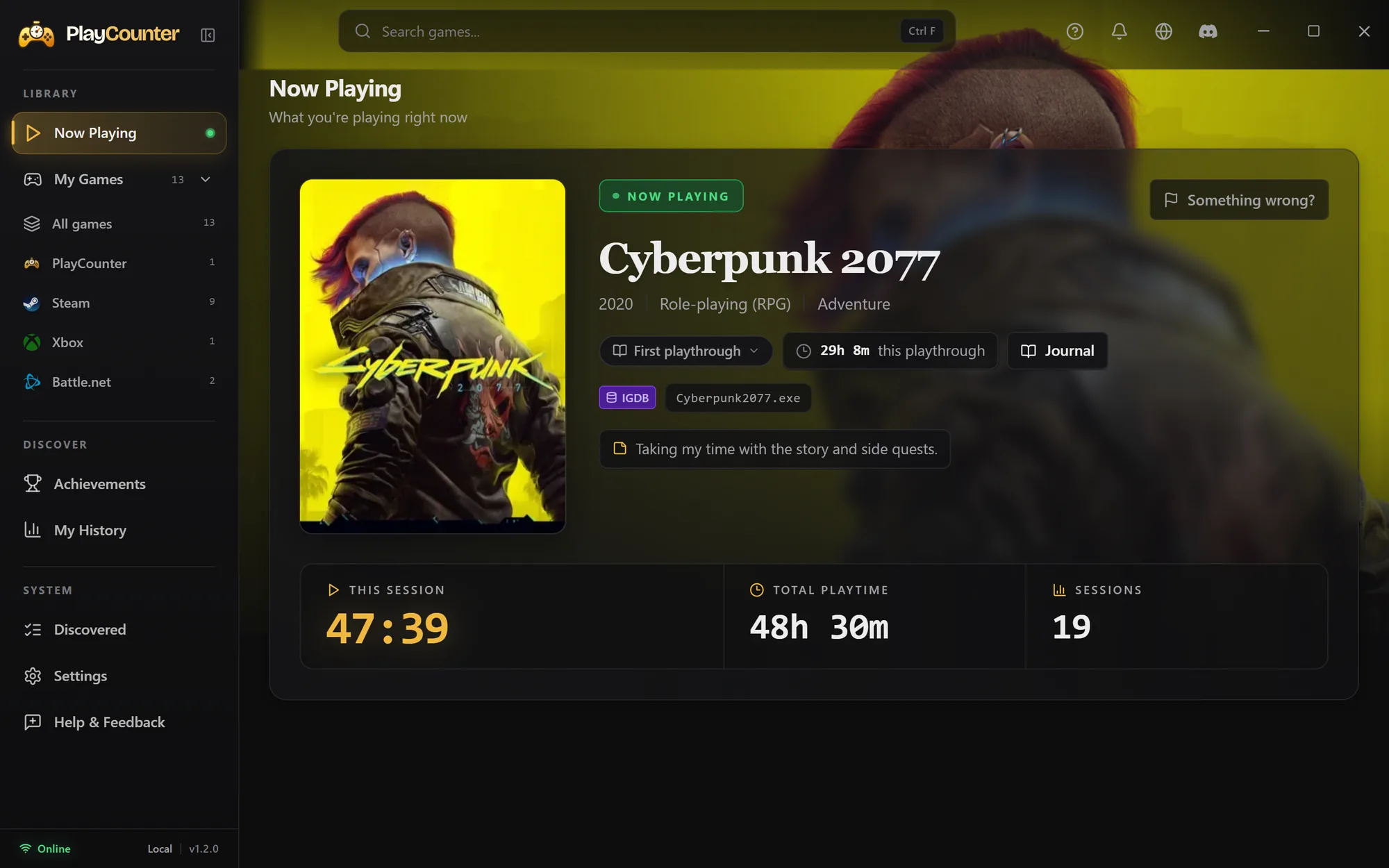
A timer starts when your game does.
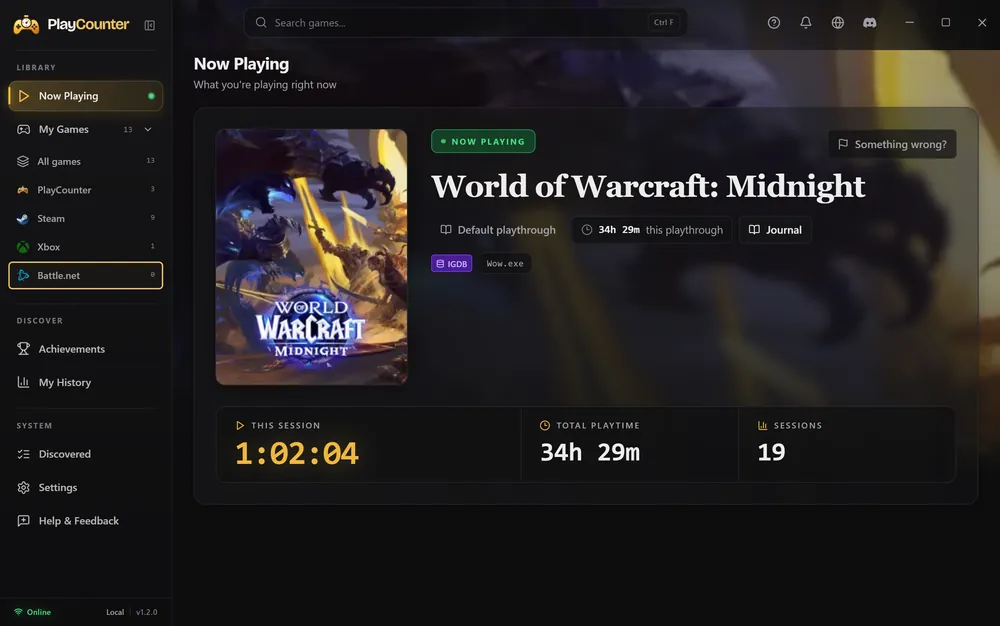
Open a game the way you always do. PlayCounter recognizes it, shows a live session timer and saves the session when you quit. It can stay in the tray the whole time.
Free playtime tracker for Windows
PlayCounter records how long you play, automatically. Start your games from Steam, Battle.net, Epic, a disc or an emulator: they all land in one library with one clear total each.
 Coming soon to Steam
PlayCounter 1.2.0 · Example data · +500 installations in the last 30 days.
No importer or special launch setup needed for tracking. Which games are recognized?
These games don’t show one clear total. PlayCounter tracks them on your PC, and each guide shows where the game keeps its own numbers.
Inside the app
A live timer while you play. A library, a history and milestones to come back to.
Now Playing
Open a game the way you always do. PlayCounter recognizes it, shows a live session timer and saves the session when you quit. It can stay in the tray the whole time.
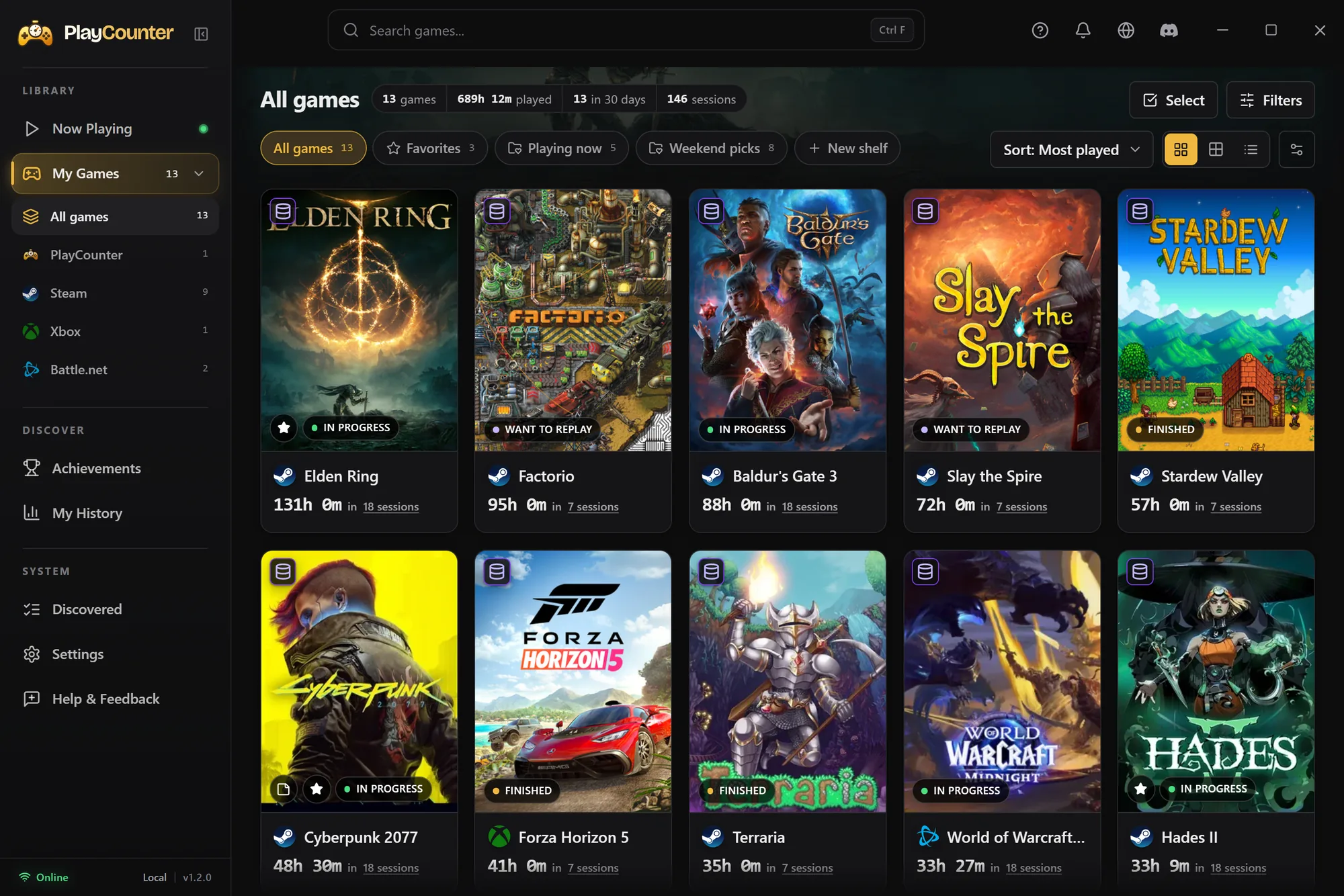
My Games
Covers, total hours and sessions for each game. Pin a favorite as a banner, sort by playtime, sort games onto shelves and give them a status like In progress or Finished. Dark or light, your choice.
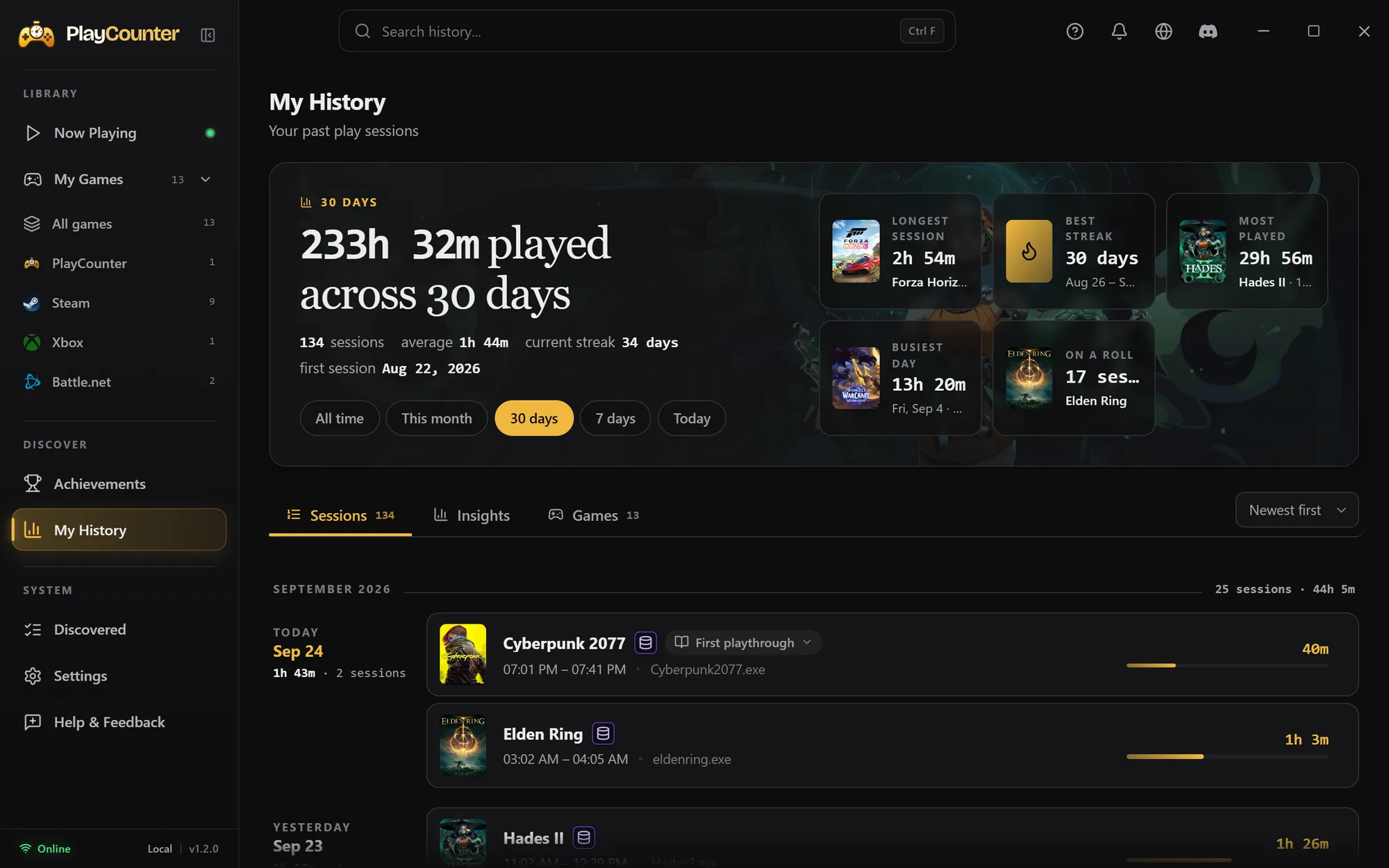
My History
Every session with its date and length. Pick a range to see your total, your streaks, your longest session and your most played games.
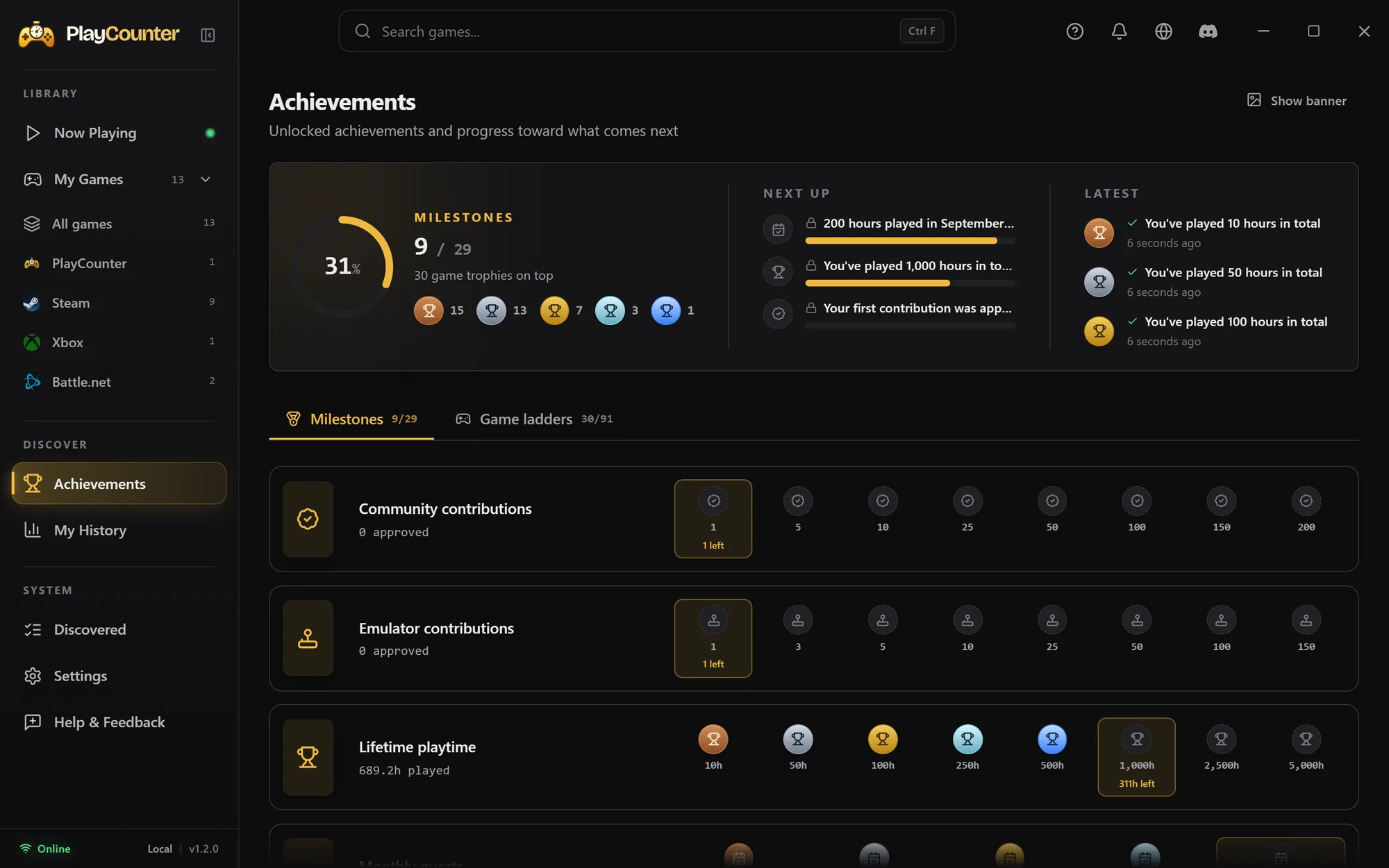
Achievements
Trophies for lifetime hours, monthly goals and per-game ladders unlock as you play. Nothing to set up.
Journal
Write down where you stopped. Start a new playthrough for New Game+ or a speedrun, each with its own playtime, note and sessions.
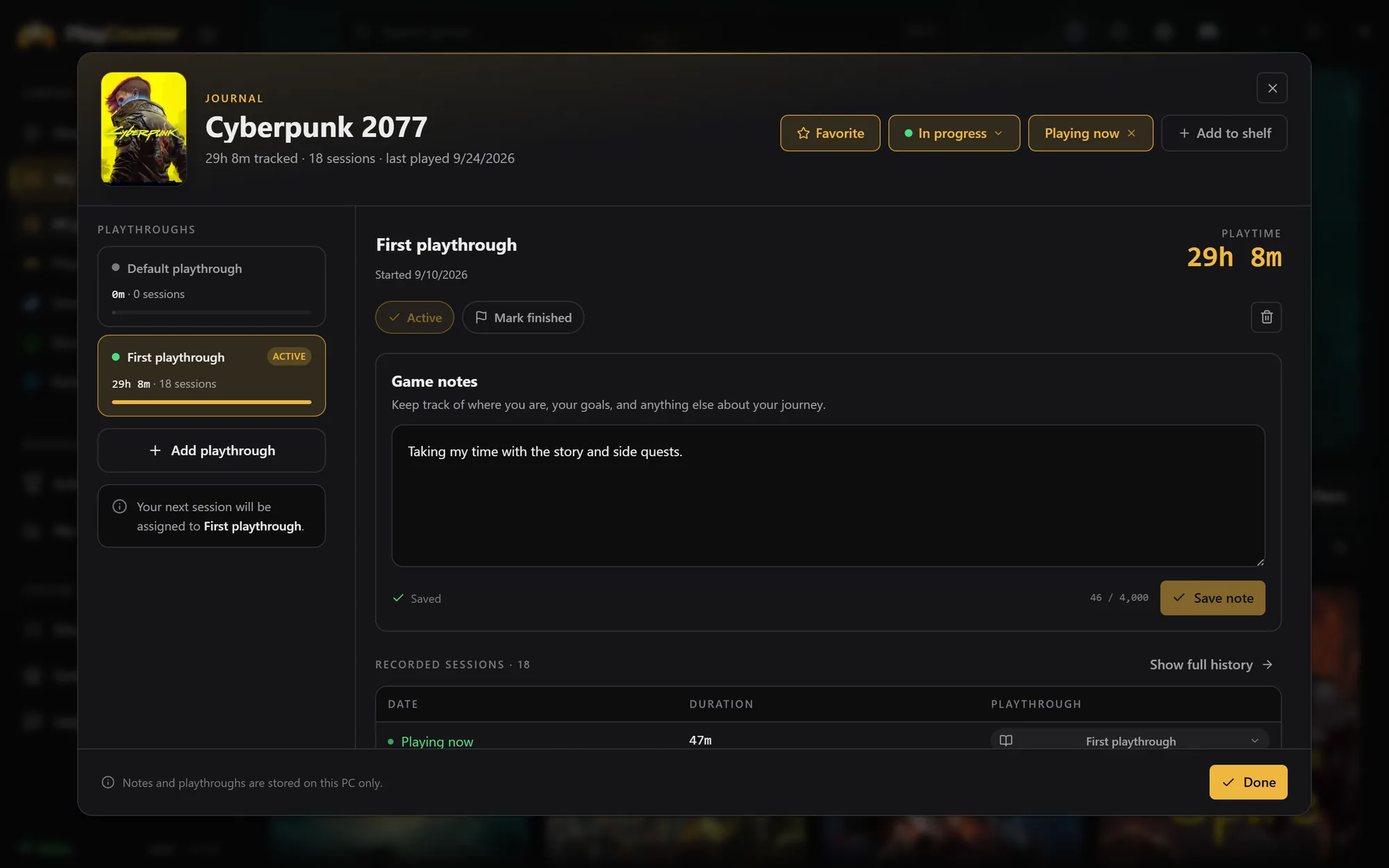
Your recorded sessions, notes and history stay on your PC. Game matching and a few other features use online services. What the app sends online.
Imports
Tracking works without any import. Steam, Xbox and Epic imports are worth it: they bring in the hours those launchers recorded, so your totals start with your real playtime. Battle.net shares no playtime, so its import is optional.
Games + your Steam hours
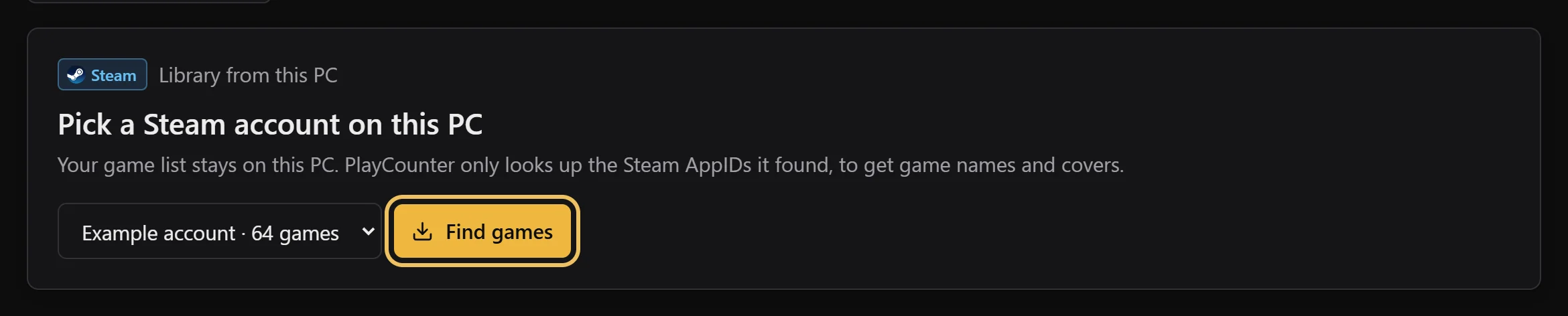
Choose a local Steam account, review its games and import them with the playtime Steam recorded. No extra sign-in.
Import Steam playtime
Games + your Xbox hours
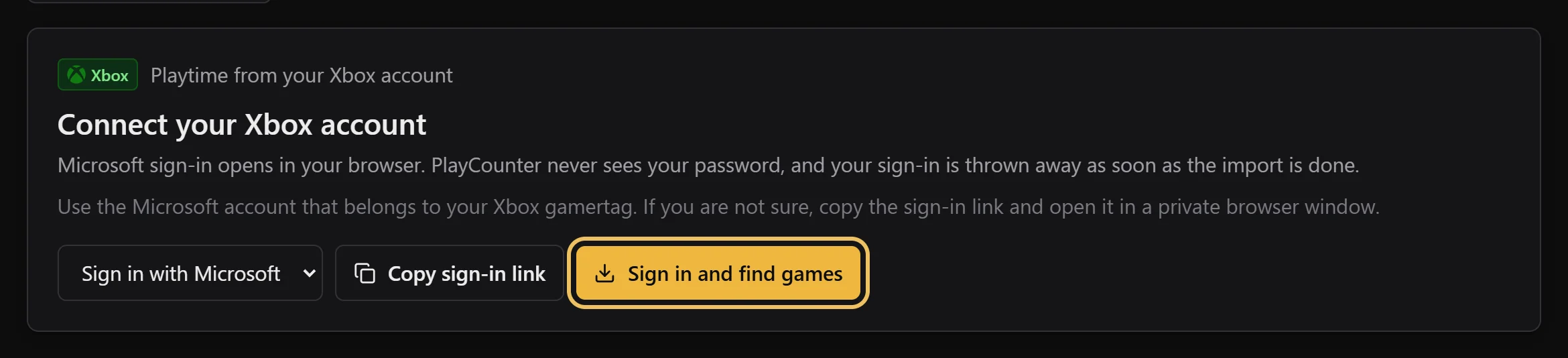
Review games from your Xbox account and import the playtime Xbox reports for them. You choose what to keep.
Import Xbox playtime
Games + your Epic hours
Sign in to bring in your Epic library with the playtime Epic recorded. Or just scan installed games without signing in; their earlier hours then stay unknown.
Import Epic playtime
Game list only · no playtime
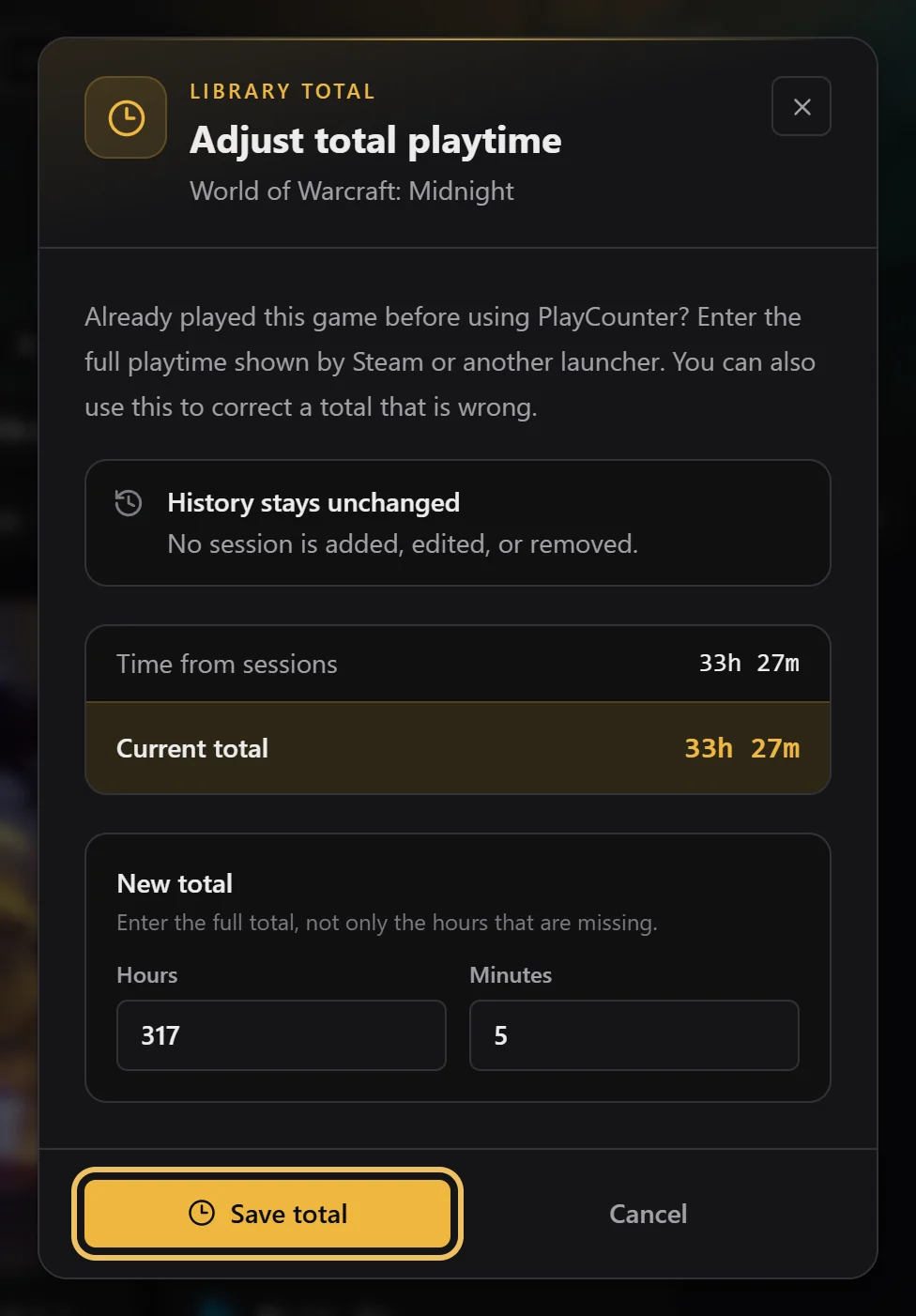
Battle.net shares no playtime, so there is nothing to bring over but your game list. You can skip it: start your games from Battle.net and PlayCounter tracks them anyway. Set earlier hours yourself, for example from WoW’s /played.
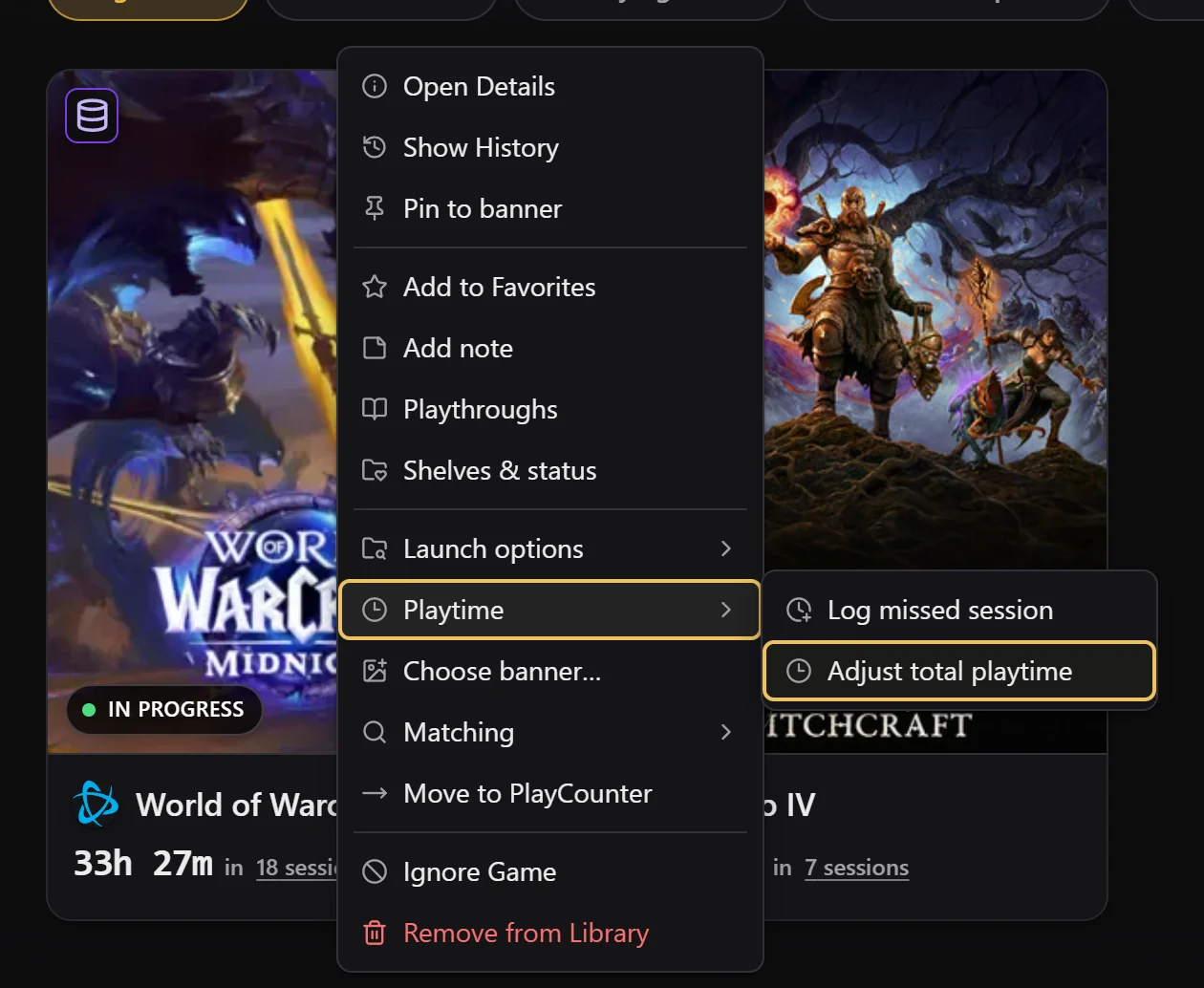
Track Battle.net gamesBattle.net, GOG, EA, Ubisoft, Riot, itch.io and standalone games are tracked as you play, no import needed. To include hours from before, set the game’s total yourself. How to adjust a total.
Each launcher counts once. PlayCounter adds up the imported launcher totals, compares that with the time it tracked itself and shows the higher number. See an example.
Emulators
Dedicated detection for DOSBox, Dolphin, PCSX2 and mGBA gives each recognized game its own cover, total and sessions.
Recognize games running in supported DOSBox variants, including DOSBox-X and DOSBox Staging.

Track individual games when Dolphin provides a recognizable game identifier or window title.

Track individual PS2 games from the disc image PCSX2 has open or the file it was started with.
Track individual Game Boy and GBA games by the game name mGBA shows in its window title.
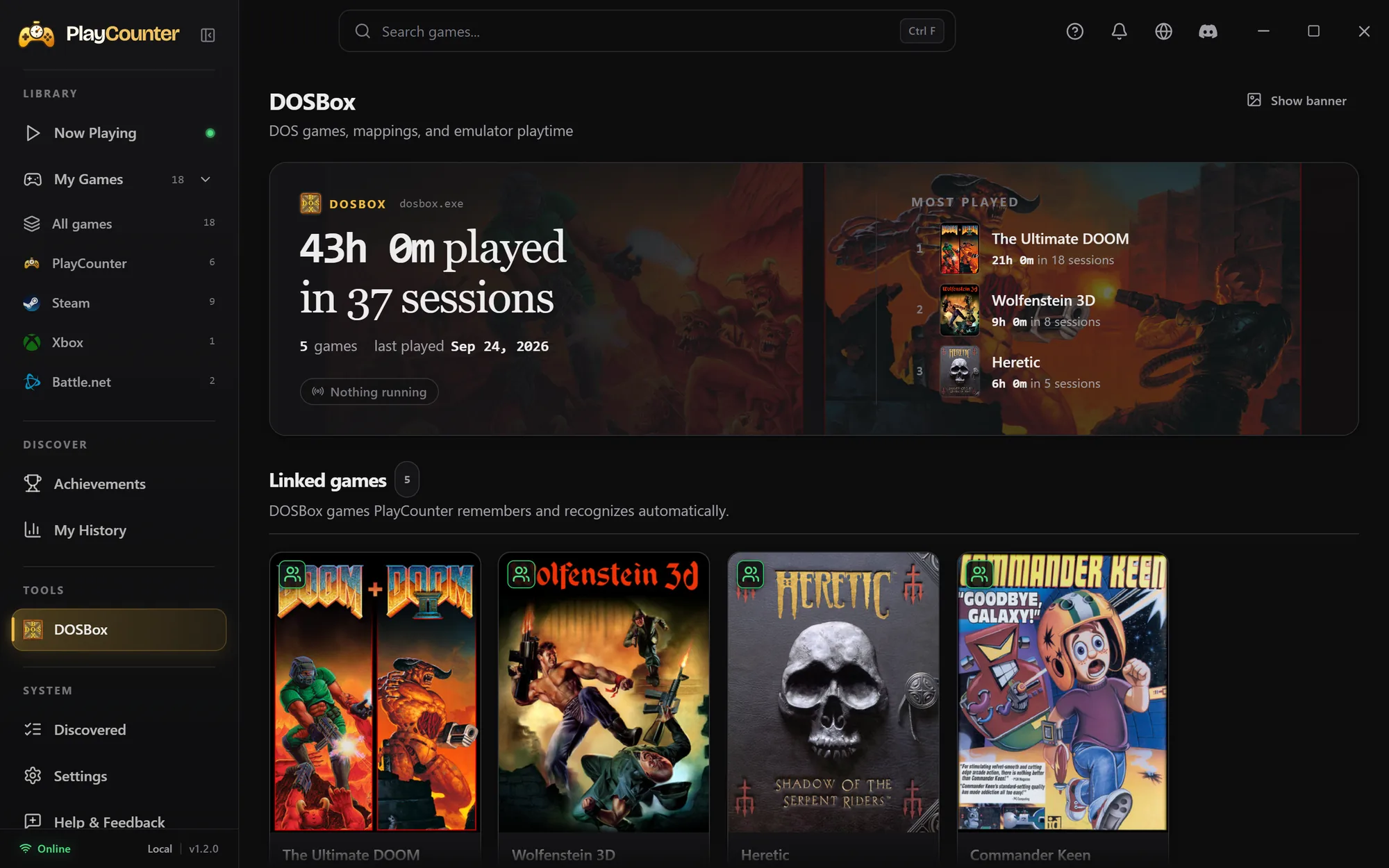
Some matches need your review. See supported variants, setup and detection details
Get started
Download the free Windows app and open it. There is no account to create.
Leave PlayCounter running, even in the tray. Start your games the way you always do.
Now Playing shows the live session. My Games and My History keep your totals and sessions.
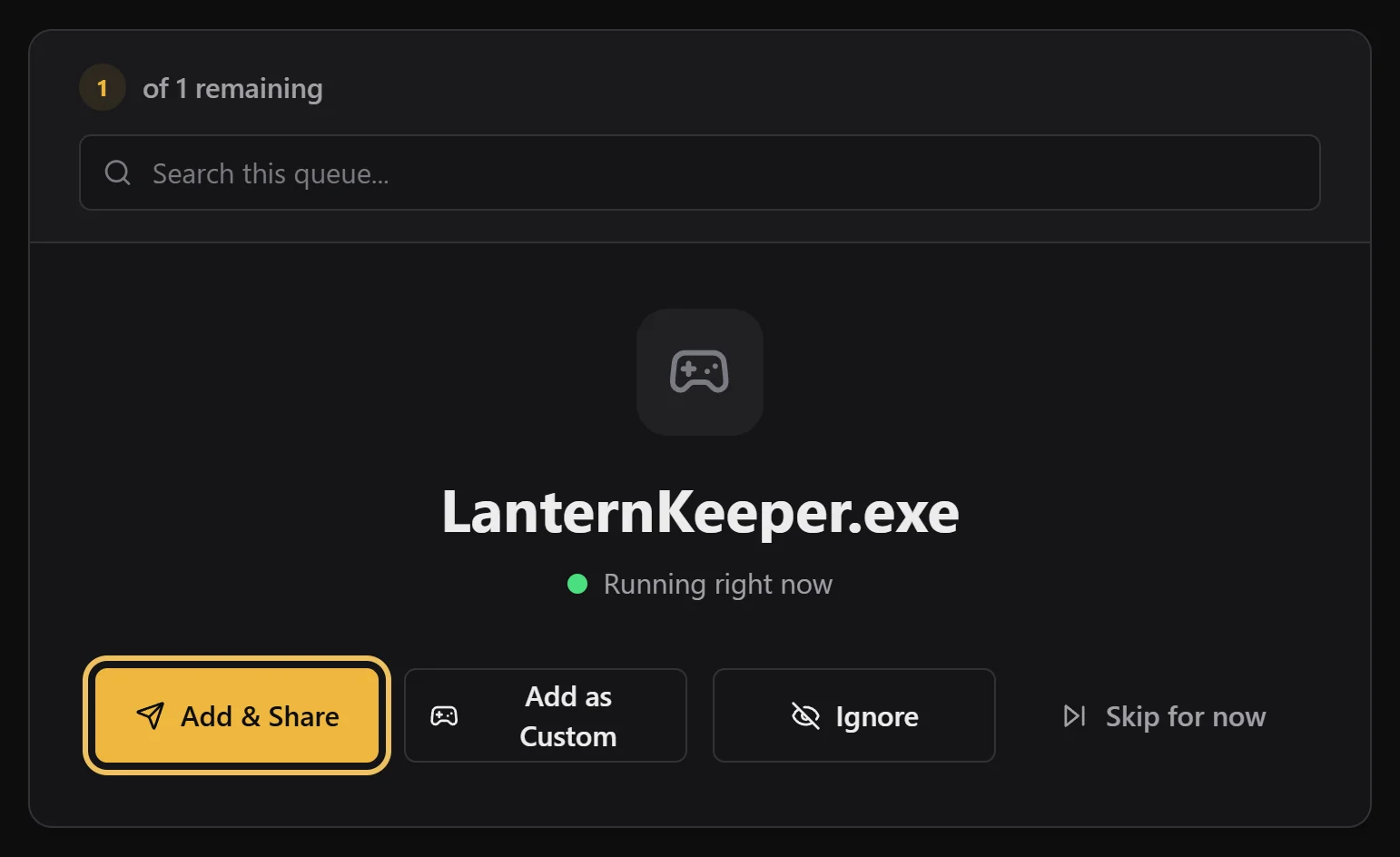
Game not showing up? Add it in Discovered. Want the details? How detection works.
Step-by-step guides
Questions
Yes. The Windows app is free, and the desktop source is available under the MIT license. There is no subscription or PlayCounter account to create.
No. Keep PlayCounter running, including in the system tray, and launch games as usual. It records recognized games automatically, regardless of launcher. If a game is not recognized, add it in Discovered. How to add a game.
Yes. Steam, Xbox and Epic imports bring in the playtime those services report. For Battle.net and every other launcher, set a game’s earlier total yourself with Adjust total playtime. Neither creates past sessions in your history. How to set a total.
Dedicated per-game detection supports DOSBox, Dolphin, PCSX2 and mGBA. Recognition depends on the game information the emulator exposes; uncertain matches can be reviewed. Emulator setup and limits.
Your recorded sessions and history stay on your PC. Game matching uses online identifier lookups, and the app sends a pseudonymous installation heartbeat. Imports look up game IDs; the optional Xbox, Epic and Battle.net sign-ins have their own data flows. Emulator matching can send game identifiers or titles. Read the privacy policy.
Yes, PlayCounter is coming to Steam soon. Until then, download the Windows installer here.
The public installer is for Windows. PlayCounter records games running on that PC. Xbox import can include account playtime reported for other devices; it does not add live console tracking.
PlayCounter for Windows
Free to use. Desktop source available on GitHub.
Coming soon to Steam