
Start with one library
- Install PlayCounter and leave it running. Launch your games from their usual launcher or shortcut.
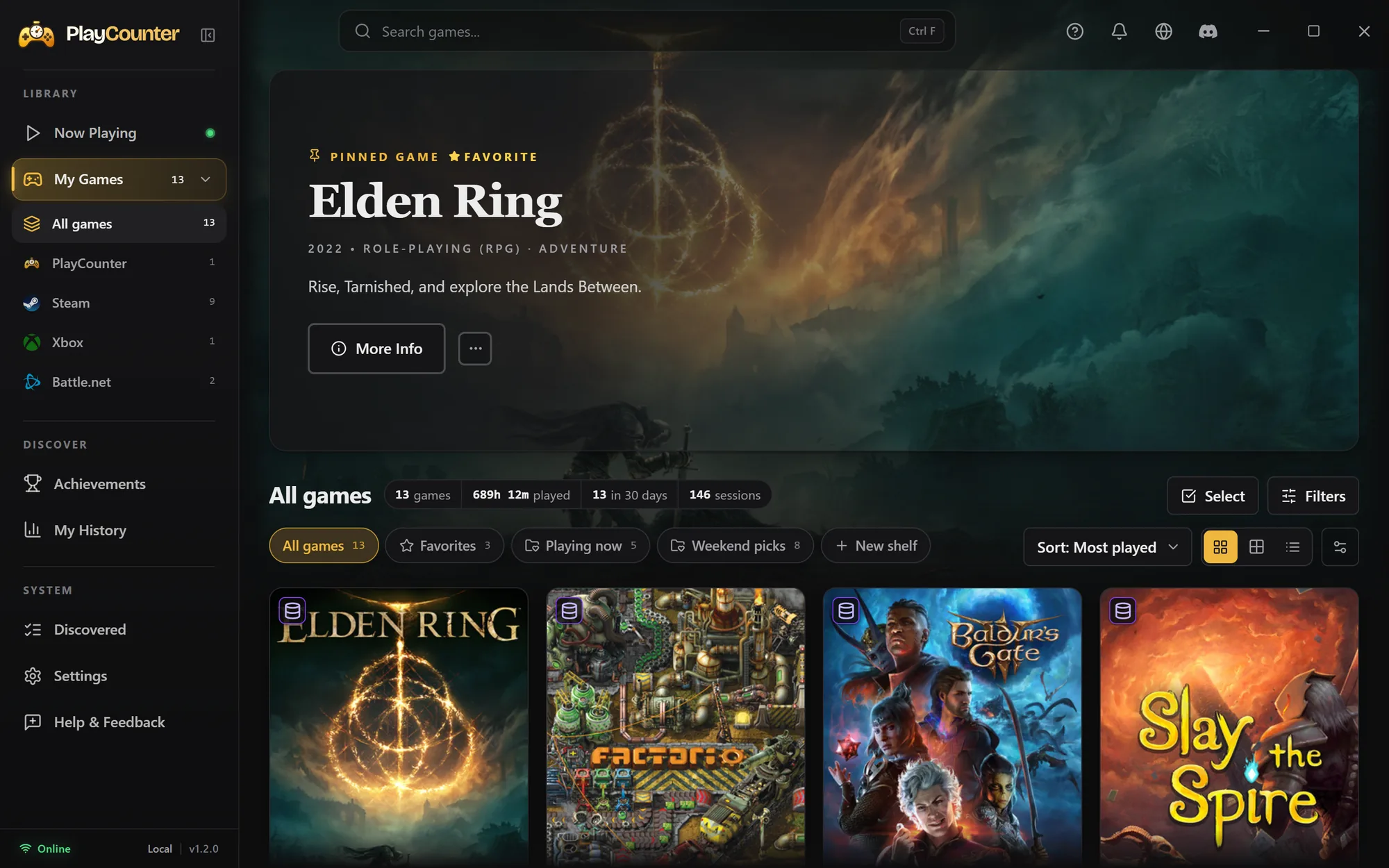
- Open My Games to see recognized games with their covers and recorded hours.
- Use the Steam, Xbox, Epic Games and Battle.net sources in the sidebar to import the games and previous playtime you want to include.
- Review uncertain matches before importing. The All games tab brings the results together.
Bring in earlier hours
Steam import reads the available library and playtime from a Steam account on this PC. Xbox import uses a Microsoft sign-in and the playtime that individual games report to Xbox. Epic import uses an Epic sign-in and the playtime Epic recorded. Battle.net import only adds your Battle.net games, without playtime, so you can skip it. These are optional imports; automatic PC tracking does not depend on them.
PlayCounter does not import historical hours from Battle.net, GOG, EA, Ubisoft or other launchers. Their recognized PC games are still tracked as you play, and you can set a game’s earlier total yourself. An imported or adjusted total is a starting reference, not a reconstruction of past sessions.
How playtime totals work
Each launcher’s total counts once, and different launchers are added together: hours on Steam and hours on Xbox are separate play. PlayCounter compares that sum with its own total, meaning the sessions it recorded plus any adjustment you made, and shows the higher number.
For example, a game with 100 hours reported by Steam, 70 by Xbox and 20 recorded by PlayCounter shows 170 hours. New sessions still appear in history, but the displayed total stays at 170 until PlayCounter’s own total or an updated import exceeds it.
Run an import again to refresh the launcher totals. Games matched to the same game identity share a total; review unmatched or ambiguous entries so the correct titles are linked.
Browse your sessions and statistics
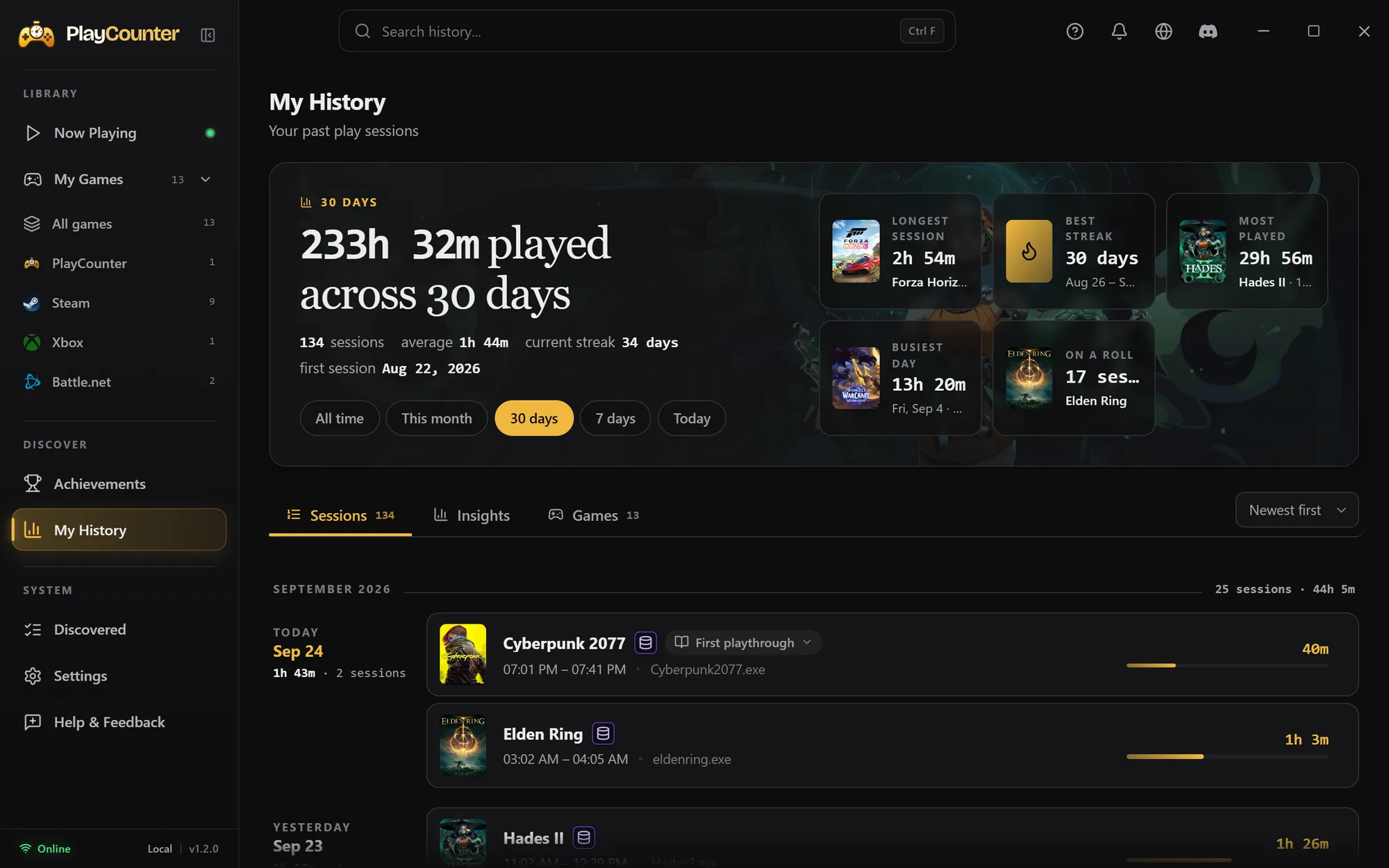
My Games offers search, sorting, provider tabs and different library layouts. My History shows the sessions PlayCounter recorded, with playtime statistics. Imported historical hours belong in game totals; they are not invented session entries.
You can log a missed session or adjust a game’s total when you have earlier time to include. Backups run automatically; export one in Settings before moving to another PC.