
When you need this
Steam and Xbox imports bring in playtime automatically. Most other launchers don’t share it, so PlayCounter starts from the sessions it records itself. Set the total yourself when:
- You played a game from Battle.net, Epic, GOG, EA, Ubisoft, Riot or itch.io before installing PlayCounter.
- You know a total from somewhere else, like a game’s statistics screen or WoW’s
/played. - A total is wrong and you want to correct it.
Find the total you want to enter
| Where you played | Where the number is |
|---|---|
| Battle.net | No launcher total. Use the game’s own statistics, such as /played in WoW. |
| Epic Games | Library in list view, column Time Played. |
| GOG GALAXY | The game’s page in your GALAXY library. |
| EA app | Menu, then Settings, then My Playtime. |
| Ubisoft Connect | The game’s statistics, where available. |
| Minecraft Java | Esc, then Statistics, then Time Played, per world. |
| Steam and Xbox | Nothing to do: the imports bring the hours in. |
Set the total
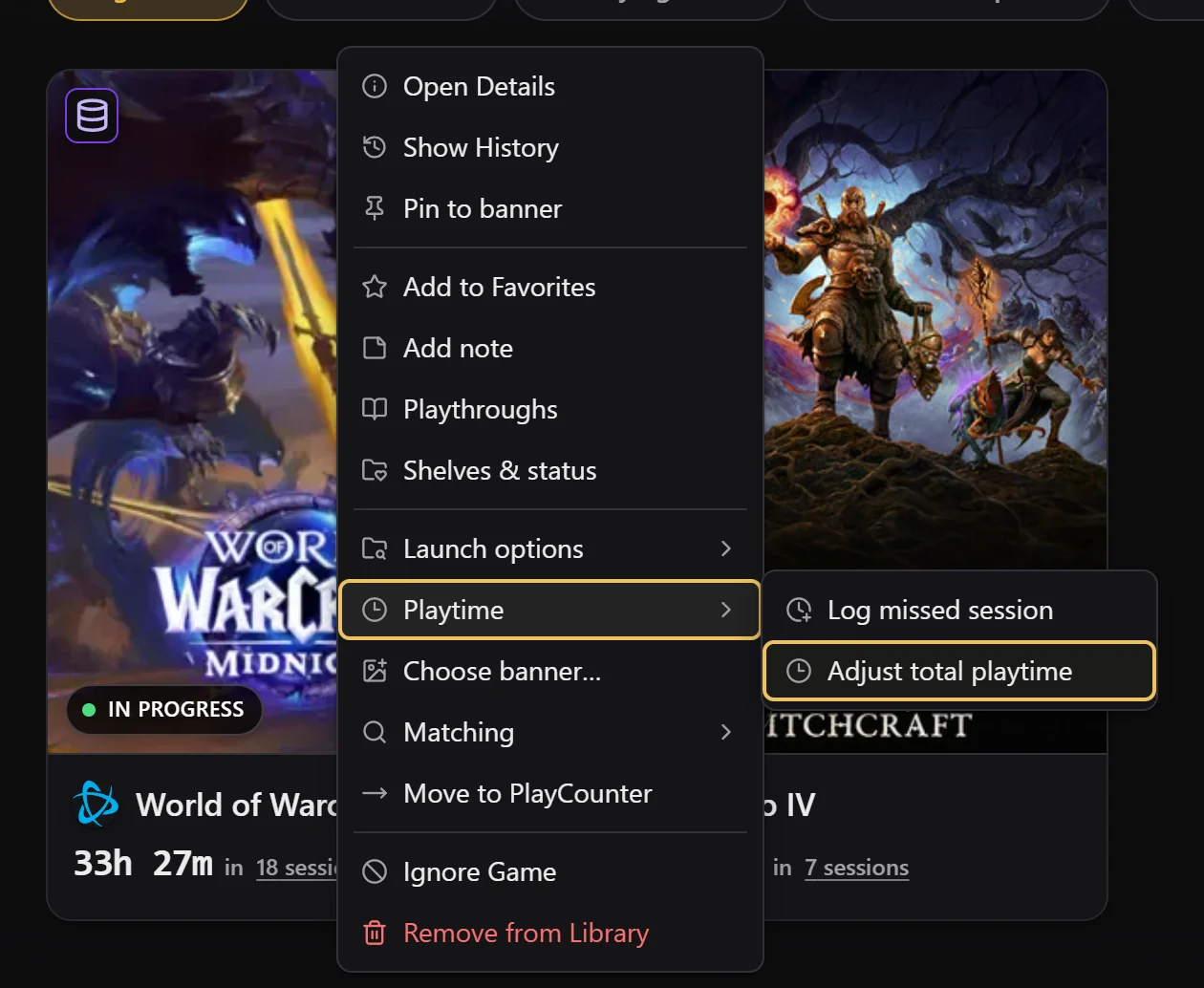
Right-click the game, then Playtime → Adjust total playtime
In My Games, right-click the game’s cover. Open Playtime and choose Adjust total playtime.
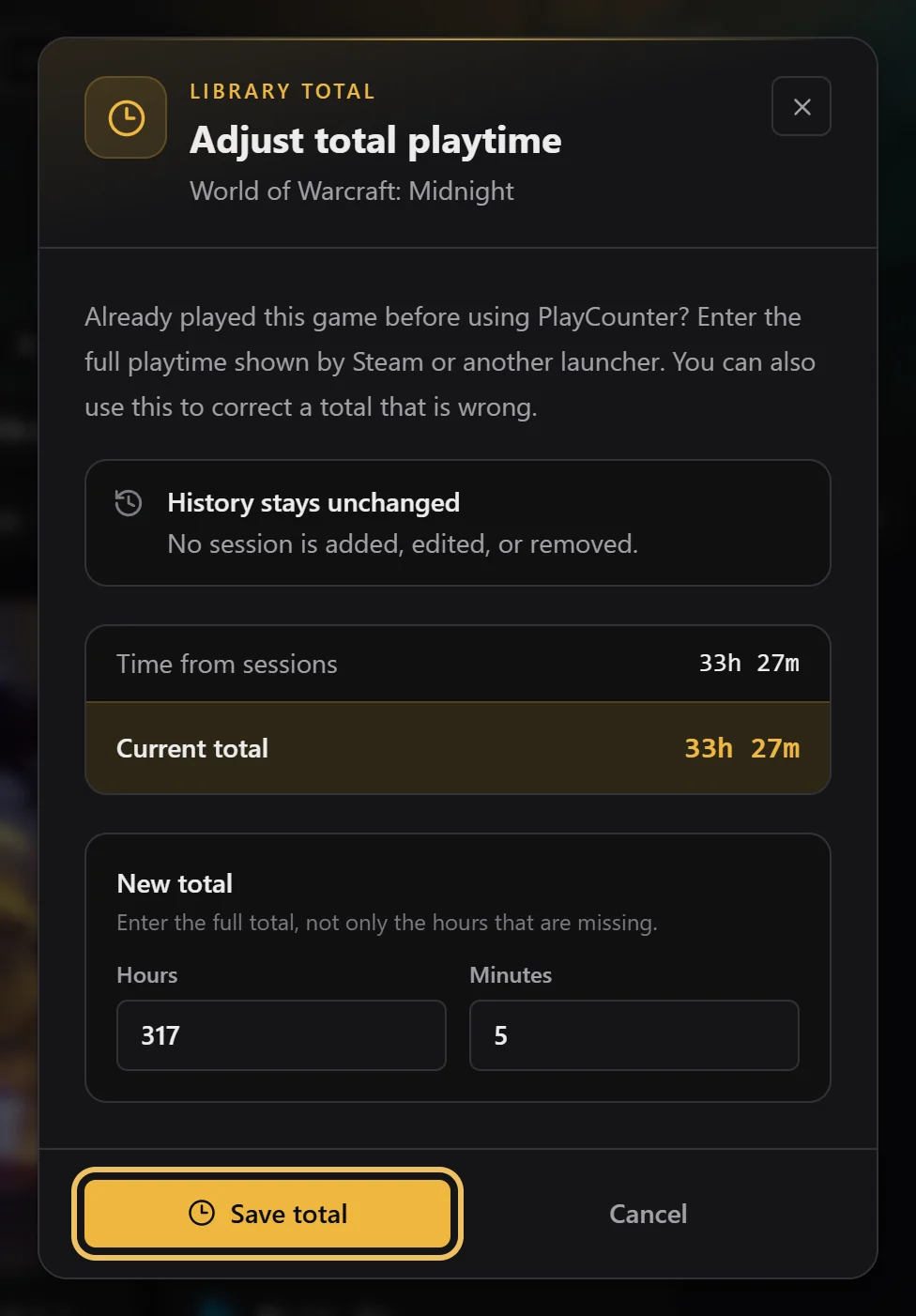
Enter the full total, then Save total
Type the hours and minutes of the complete total, including time PlayCounter already recorded. The dialog shows the time from your sessions for reference.
Check the new total
The game card shows the new total right away. Every session you play from now on is added to it.

To undo, open the dialog again and choose Reset to recorded time. While the game is running, close it first: a total can’t be changed during an active session.
Or log one missed session
If you know when you played, for example on another PC yesterday evening, log it as a session instead. Unlike a total adjustment, it appears in My History and counts for streaks and stats.
Right-click the game, then Playtime → Log missed session
It sits right above Adjust total playtime in the same menu.
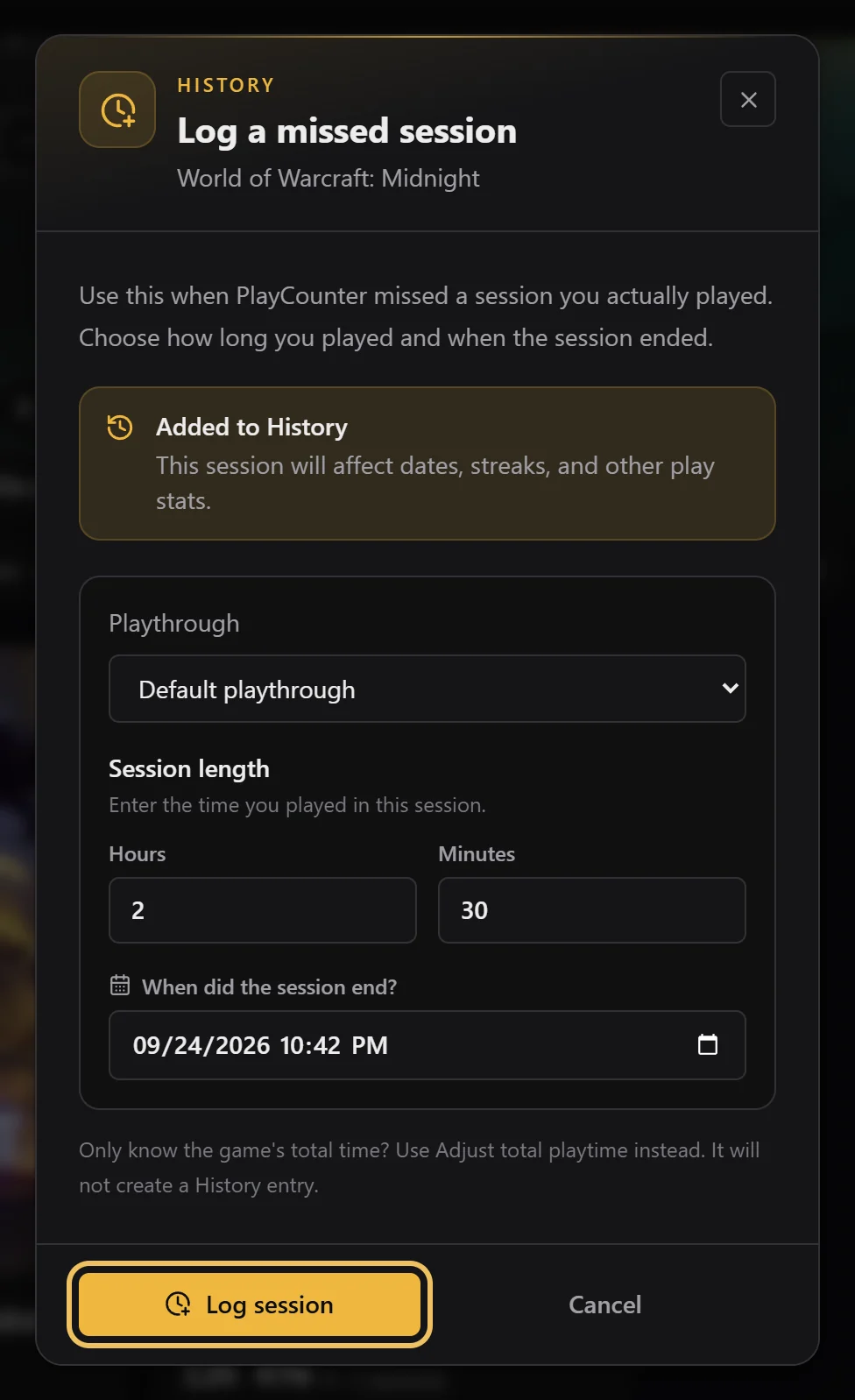
Enter the length and when it ended, then Log session
Choose a playthrough if you use them, then enter hours, minutes and the date and time the session ended.
How this works with Steam and Xbox hours
Imported Steam and Xbox hours are kept per launcher and added together. PlayCounter shows the higher of that sum and its own total, which includes your adjustment. For an imported game, an adjusted total therefore only changes the number when it is higher than the imported hours. Totals explained with an example.