Yes, Windows games can be timed without Steam

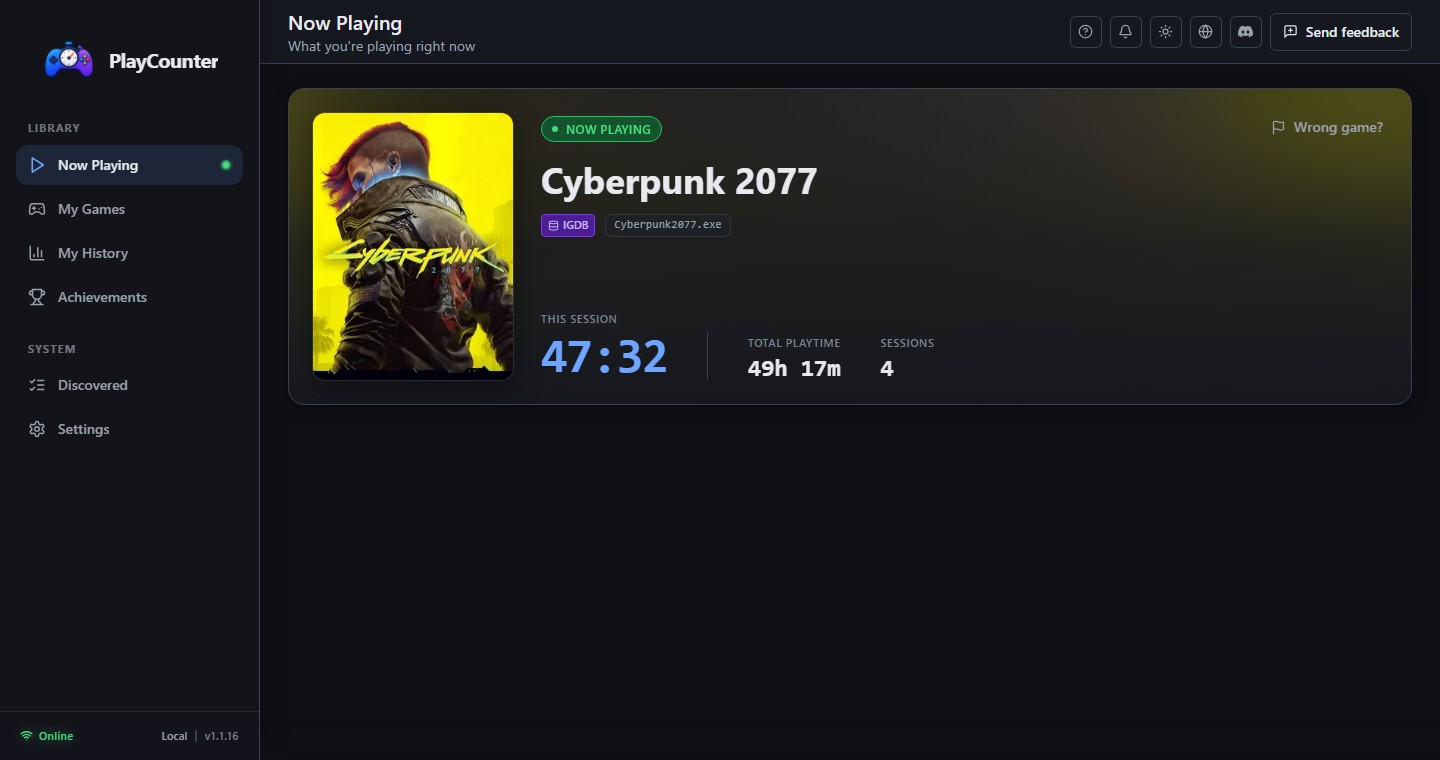
A playtime tracker does not have to depend on a Steam account or library. PlayCounter watches running applications on Windows. If it recognizes a game's executable filename, it starts a session automatically and stops when that process is no longer running. You continue to open the game from its normal launcher, a desktop shortcut, its folder, or another tool.

This approach covers more than “non-Steam games” added to Steam. It can record recognized titles installed by Epic Games, GOG, Xbox, EA, Ubisoft, Battle.net, or a small publisher's own installer. It can also cover legally obtained DRM-free downloads, portable builds, fan games, and standalone executables. The source matters less than the Windows process that actually runs.

Why launcher-independent tracking is different

Store-based playtime usually belongs to one store account. That is convenient until a library is split across several launchers or a game has no launcher at all. PlayCounter creates one local record from sessions it observes on the PC. There is no launcher login, installed-library import, or requirement to reorganize how games are started.

PlayCounter is intentionally a tracker rather than a launcher. It does not try to replace your library frontend. If organizing and launching a unified collection is the goal, a library manager may be the better fit. If the goal is simply to remember how long applications were used, passive process tracking is the more direct model.

Setup takes three practical steps

  1. Install PlayCounter on Windows and let it run in the background. It can be configured to start with Windows and stay available from the system tray.
  2. Launch games exactly as you do now. A recognized executable is matched and timed automatically; there is no need to start it from inside PlayCounter.
  3. Check the app when you want to see the current session, total time, session count, or recent local history.
The record starts when PlayCounter observes it.

PlayCounter does not import old hours from Steam or another launcher. Historical or missed time can be added manually, but automatic totals grow from observed sessions going forward.

What happens when a game is not recognized?

Automatic matching works when an executable name has a reliable game match. A new or uncommon filename may appear as unknown. You can add it as a local custom game or submit an executable-to-game suggestion for review. An approved community match can make future detection automatic for other players.

Generic names such as game.exe can belong to many titles. When several candidates are plausible, PlayCounter asks for one local choice instead of treating one person's answer as a universal mapping. That choice is remembered on that PC. The automatic detection guide explains this matching path in more detail.

Know the shared-process limits

Process-based tracking is strongest when each game has its own executable. Emulators often use one shared emulator process for every ROM, so PlayCounter may track the emulator rather than the individual game. Browser and cloud-streaming titles can have the same issue because several experiences share one client process. See the honest breakdown of which games PlayCounter supports.

What about modified or unofficial game builds?

People who search for a way to track playtime for cracked games are usually looking for tracking that does not depend on an official launcher. PlayCounter does not crack games, bypass DRM, distribute game files, or verify a software license. It only records the runtime of a Windows process.

A modified build may match automatically when it keeps a known executable filename. A renamed or generic executable may need a local custom match instead. Use PlayCounter only with software you have the legal right to run.

What leaves the PC for matching?

Playtime and session history are kept in local app storage. For automatic matching on Windows, the app sends the executable filename, such as example.exe, to the matching API. It does not send the full executable path. No PlayCounter account is required. Community suggestions and feedback are separate actions that happen only when you choose to send them.

A focused fit for scattered game collections

PlayCounter is a good fit when games come from several legitimate sources and you want a simple local timeline without turning a tracker into a new launch routine. It is Windows-only today, and some unusual executables need help once, but recognized games can then be timed with very little ongoing work.

If one store already contains every game you play and its own total is enough, another tracker may be unnecessary. PlayCounter becomes most useful when the collection crosses launcher and folder boundaries.